> ## Documentation Index
> Fetch the complete documentation index at: https://eetech.mintlify.site/llms.txt
> Use this file to discover all available pages before exploring further.
# Trigger Actions
> Contains information about the chat components in trigger actions.
### **1. Live Chat**
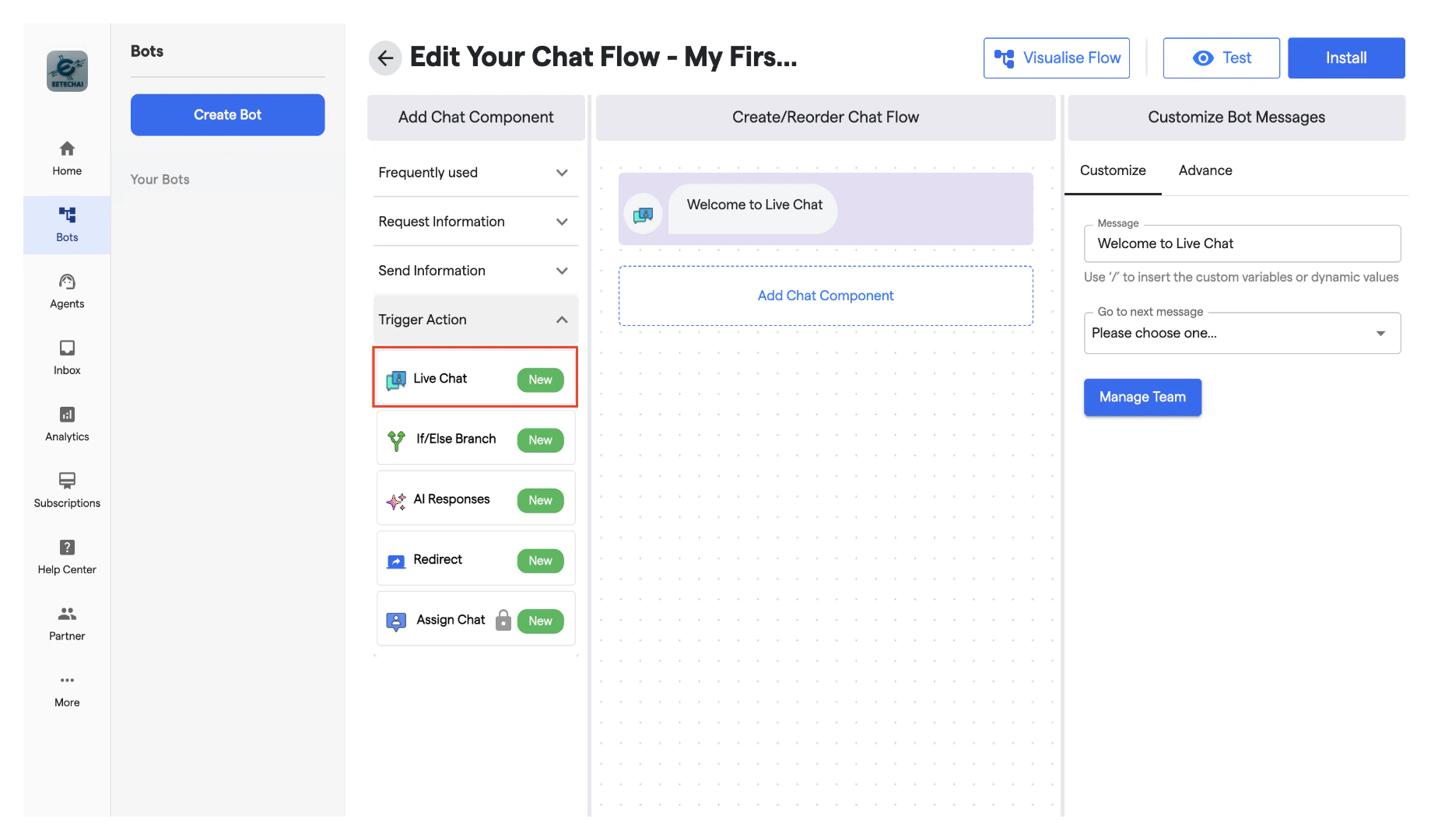
It is used to initiate live chat with your available agent.
* It will create a live chat request.
* You can enter a text message to inform the user that the request has been triggered.
* By clicking on "Manage Team," you will be redirected to the Team's Section, where you can assign roles and manage your team.
Do not set next message to "End Chat" after using the live chat component.
 ### **2. If-Else Branch:**
* Introduces logic-based decision-making in the chatflow.
* Branches the chat base**d on various parameters.**
* Users can set conditions by clicking **"Please choose one"** and selecting a decision rule.
* Additional If-Else branches can be added using the **"Add If/Else Branch"** button.
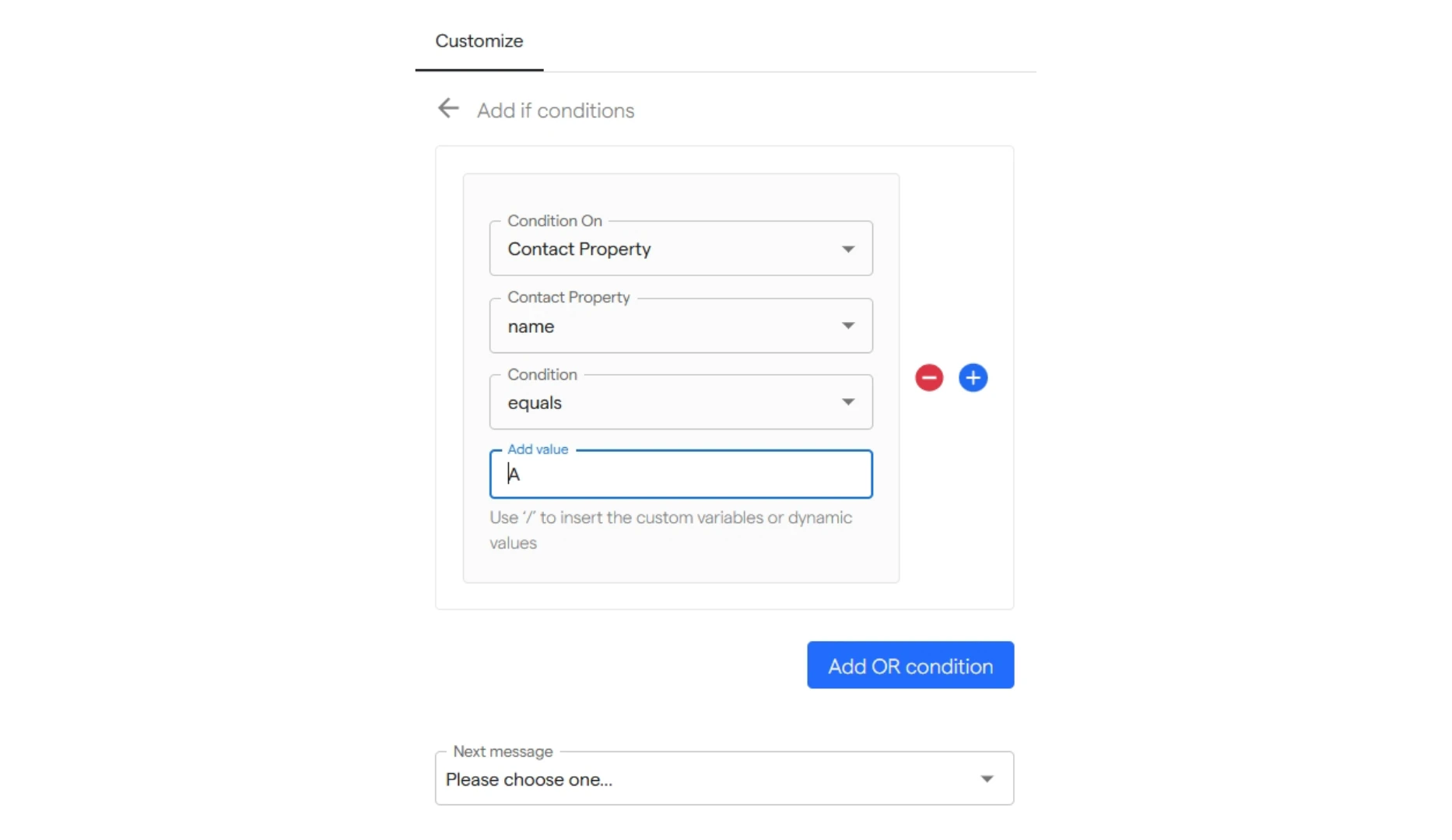
* The available "**Condition On**" options include:
* **Visitor Response** – Based on the response given by the user to the chat message.
* **Custom Attribute** – Evaluates the values of custom attributes created by the user.
* **Contact Property** – Includes standard properties such as name, phone number, email, etc.
* **Chat Property** – Considers chat-based properties such as tags, status, or weekday.
* **Team Availability** – Checks whether a team member is currently available of a particular team.
* **Business Hour Availability** – Determines if the chat occurs within predefined business hours as specified by user.
* Conditions can be compared against **fixed values** using the following operators:
* **Equals** (Exactly matches the given value)
* **Not Equals** (Does not match the given value)
* **Is Any Of** (Matches any value from a predefined list)
* **Is Not Any Of** (Does not match any value from a predefined list)
* The value for comparison is entered in the final input box, where users can also incorporate dynamic elements (e.g., user name) or custom attributes by using the **"/"** symbol.
* Additionally, users can define OR conditions using the **"Add OR Condition"** option. This allows for multiple conditions to be evaluated, ensuring flexibility even if the first condition is false.
* Finally, users must **select the next message** to determine the chatflow's progression after a condition is met.
### **2. If-Else Branch:**
* Introduces logic-based decision-making in the chatflow.
* Branches the chat base**d on various parameters.**
* Users can set conditions by clicking **"Please choose one"** and selecting a decision rule.
* Additional If-Else branches can be added using the **"Add If/Else Branch"** button.
* The available "**Condition On**" options include:
* **Visitor Response** – Based on the response given by the user to the chat message.
* **Custom Attribute** – Evaluates the values of custom attributes created by the user.
* **Contact Property** – Includes standard properties such as name, phone number, email, etc.
* **Chat Property** – Considers chat-based properties such as tags, status, or weekday.
* **Team Availability** – Checks whether a team member is currently available of a particular team.
* **Business Hour Availability** – Determines if the chat occurs within predefined business hours as specified by user.
* Conditions can be compared against **fixed values** using the following operators:
* **Equals** (Exactly matches the given value)
* **Not Equals** (Does not match the given value)
* **Is Any Of** (Matches any value from a predefined list)
* **Is Not Any Of** (Does not match any value from a predefined list)
* The value for comparison is entered in the final input box, where users can also incorporate dynamic elements (e.g., user name) or custom attributes by using the **"/"** symbol.
* Additionally, users can define OR conditions using the **"Add OR Condition"** option. This allows for multiple conditions to be evaluated, ensuring flexibility even if the first condition is false.
* Finally, users must **select the next message** to determine the chatflow's progression after a condition is met.
 ### **3. AI Agent (Previous ChatGPT)**
It is used to trigger AI in chat flow.
* You can enter the first message that will be sent before starting the AI-generated questions.
* Select the number of queries to be resolved using AI.
* If the query suggestion box is checked, you must provide up to 3 chat suggestions to be used initially.
* After that, the AI Agent will provide query suggestions based on the prompt you enter.
* You can also train your AI, and the query suggestions and replies will be based on that training.
* Integrate your preferred LLM directly from here using the "AI Provider Integration Required" box
### **4. Redirect:**
The "**Redirect**" component allows for the chat to be transferred between the several flows that the user makes:
* You can select the chatflow to redirect to through the drop-down menu and selecting the desired chat.
* Upon reaching this component, the chat will go to the starting point of the selected chat.
### **5. Assign Chat**
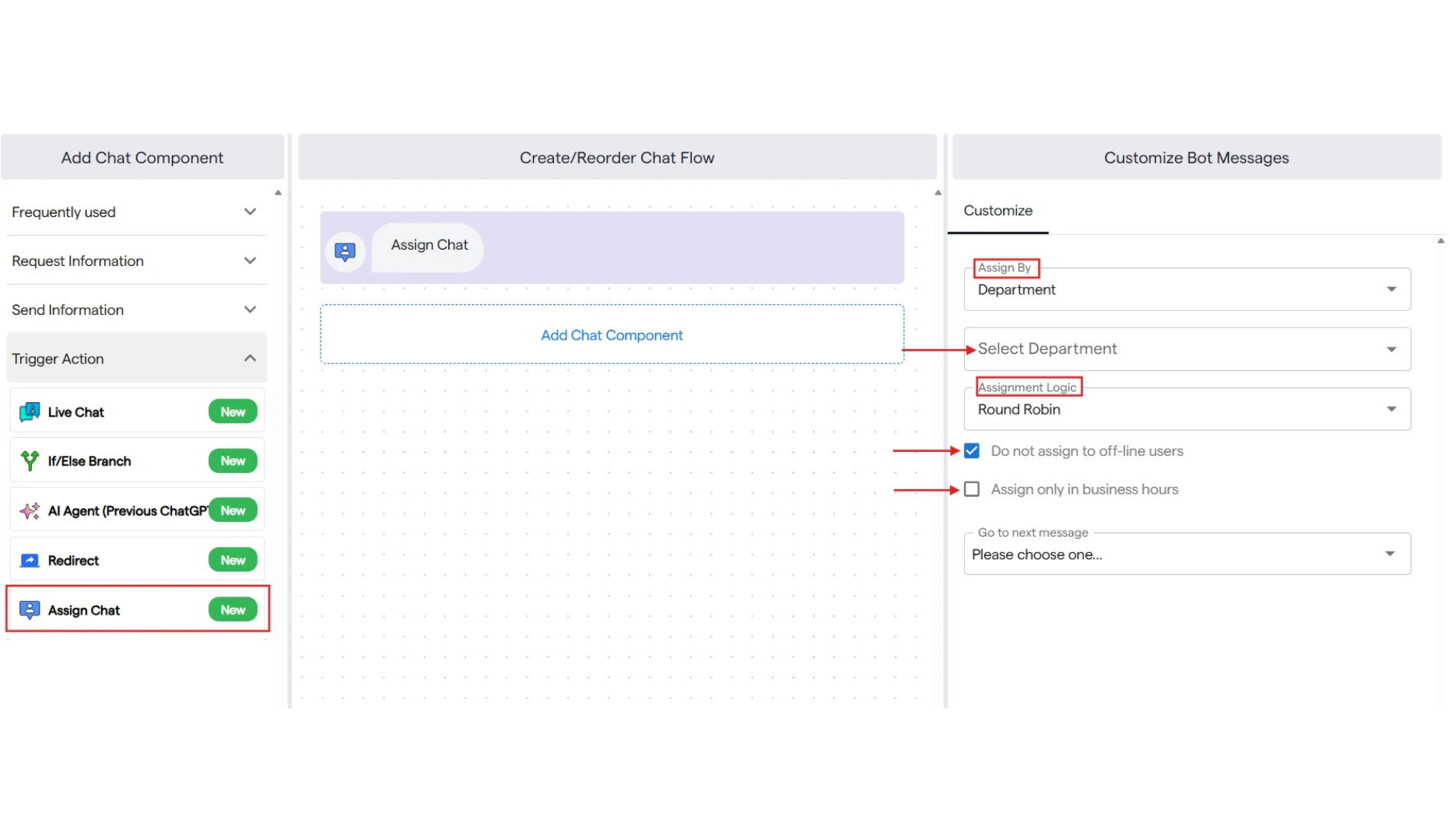
It is used to automatically assign live chat request among team members.
* You can either assign the task to a team member by selecting their name.
or
* You can assign it by department, select the department, and set the assignment logic to "Round Robin," where each team member will be automatically assigned a live chat request one by one in a round.
* You can choose not to assign tasks to offline agents and assign them only during business hours.
### **3. AI Agent (Previous ChatGPT)**
It is used to trigger AI in chat flow.
* You can enter the first message that will be sent before starting the AI-generated questions.
* Select the number of queries to be resolved using AI.
* If the query suggestion box is checked, you must provide up to 3 chat suggestions to be used initially.
* After that, the AI Agent will provide query suggestions based on the prompt you enter.
* You can also train your AI, and the query suggestions and replies will be based on that training.
* Integrate your preferred LLM directly from here using the "AI Provider Integration Required" box
### **4. Redirect:**
The "**Redirect**" component allows for the chat to be transferred between the several flows that the user makes:
* You can select the chatflow to redirect to through the drop-down menu and selecting the desired chat.
* Upon reaching this component, the chat will go to the starting point of the selected chat.
### **5. Assign Chat**
It is used to automatically assign live chat request among team members.
* You can either assign the task to a team member by selecting their name.
or
* You can assign it by department, select the department, and set the assignment logic to "Round Robin," where each team member will be automatically assigned a live chat request one by one in a round.
* You can choose not to assign tasks to offline agents and assign them only during business hours.